Valentine Photo Collage Free Canva: A Practical Guide for Creators and Professionals
Creating a memorable Valentine’s Day message often requires more than a simple greeting card. A photo collage can capture shared moments, highlight a product launch, or celebrate a classroom activity. The Valentine Photo Collage Free Canva template offers a quick start for anyone who needs a polished, heartfelt design without starting from a blank canvas. This guide covers exactly what you get, how to set it up, and how to integrate it into your regular workflow for personal or professional use.
What You Receive After Downloading
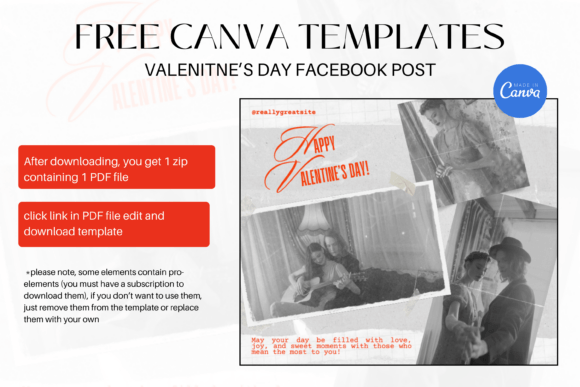
After you complete the download, you will find a single zip file. Inside that archive is one PDF file that contains a clickable link. This link does not open an editable file directly; instead, it redirects you to the Canva template page. The entire delivery is designed to be lightweight and easy to store, making it simple to archive for later use or to share with a colleague who needs the same starting point.
This structure means you do not receive a Canva project file directly. The PDF acts as a secure delivery method for the template link. Once you open the link, Canva loads the full template into your account workspace. This approach also helps keep the file size small and ensures that the template always uses the latest version of Canva’s editing tools.
Getting Started with Canva: Free Account Required
Before you can use the Valentine Photo Collage Free Canva template, make sure you have a Canva account. If you do not already have one, you can sign up at no cost using an email address, Google account, or social login. The template works on both free and Canva Pro accounts. There is no need to upgrade just to open or edit the basic layout.
Once you are logged in, open the PDF file that came with your download. Click the link inside, and Canva will ask you to confirm that you want to use the template. After that, the entire collage appears in your editor, ready for customization. This process takes less than two minutes from start to finish.
Important Note about Pro Elements
Some elements within the template—such as certain photos, graphics, or fonts—may carry a small crown icon. These are Canva Pro elements. If you are using a free account, you cannot download a final file that includes these locked items. You have two straightforward options. First, you can remove the pro elements entirely and replace them with free alternatives from Canva’s library. Second, you can substitute your own uploaded images or graphics. If you prefer to keep the exact look, a Canva Pro subscription allows you to download everything as is.
This flexibility means the Valentine Photo Collage Free Canva template works for both budgets. The free version still provides a complete structure, text placeholders, and layout guides. You simply swap out any pro elements for free ones that match your vision.
How to Use the Template in a Real Workflow
The real value of this template lies in how it fits into your existing process. Whether you are a marketer preparing a social campaign, a teacher organizing a class activity, or a small business owner creating a client thank-you collage, the template saves time on layout and spacing decisions.
Preparation: Gather Your Assets First
Before you open the template, collect the photos you want to include. For a Valentine theme, consider images that convey warmth, connection, or celebration. If you are using the collage for a business, choose product shots or team photos that align with your brand colors. Having your images ready in a single folder speeds up the drag-and-drop process.
Because the template already provides a grid and guides, you can focus on selecting the right photos rather than adjusting margins. This reduces the time spent on repetitive alignment tasks.
Editing and Customization
Inside the Canva editor, you can change every element. Click on any photo placeholder to replace it with your own image. Double-click text boxes to update the greeting, name, or date. The template includes multiple layers, so you can rearrange the order if needed. For example, you might move a heart graphic behind a photo or bring a text block forward.
If you need to match a specific brand palette, use Canva’s color picker to adjust backgrounds, borders, or icons. The Valentine Photo Collage Free Canva template uses a romantic color scheme by default, but you can shift it to pastels, monochrome, or bold tones without breaking the layout.
Dealing with Pro Elements Efficiently
When you encounter a pro element, decide quickly whether to remove or replace it. If you do not have a Canva Pro subscription, this step is essential before you attempt to download. A practical workflow is to do a quick scan of the template for crown icons right after opening it. Replace each one with a free alternative from Canva’s library or with your own uploaded asset. This prevents a failed download later and keeps your editing session smooth.
Practical Use Cases Across Different Roles
The template is not limited to personal Valentine cards. Its structure adapts to several professional contexts.
- Social media managers: Use the collage to create a carousel post or a single Instagram story. The square or portrait aspect ratio of the template can be adjusted in the Canva settings, but the default layout works well for most platforms.
- Small business owners: Send a personalized collage to your top clients as a thank-you gesture. Replace the family photos with product images and add a discount code in the text area.
- Educators: Have students create a Valentine collage to share with parents or post in a classroom newsletter. The template avoids complex tools, so even younger users can learn basic drag-and-drop editing.
- Freelancers and bloggers: Use the collage as a feature image for a Valentine-themed blog post or email newsletter. The consistent layout ensures your visual stays on brand without spending hours designing.
In each scenario, the template acts as a starting framework, not a final locked design. The real work is in the photo selection and copy, which the template allows you to focus on.
Quality Control and Consistency Tips
When using any template, maintaining visual consistency across multiple projects is important. Here are a few observations based on practical use.
- Check resolution: Photos you upload should be at least 1000 pixels wide to avoid blurriness. The template was designed for standard screen and print sizes, but low-resolution images will stand out negatively.
- Limit font variations: The template includes two or three font styles. Stick to these unless you have a strong reason to change. Overloading a collage with different typefaces reduces readability and visual harmony.
- Export correctly: After you finish editing, click the Share button and select Download. Choose JPG format for most uses—PDF if you plan to print. The Valentine Photo Collage Free Canva template exports cleanly without extra margins if you follow the download steps.
- Test the link first: If you are sharing the final collage digitally, open the exported JPG on a phone and a desktop to verify colors and alignment look correct across screens.
Long-Term Organization and Reuse
Once you have customized the template, you can save it as a copy in your Canva account. This allows you to reuse the same layout for next year or for other occasions such as Mother’s Day or anniversaries. Simply rename the project and swap the photos and text. The initial time investment pays off with every future reuse.
For users who manage multiple brand identities or seasonal campaigns, consider creating a folder in Canva labeled “Collage Templates.” Store the Valentine Photo Collage Free Canva template there along with any variations you create. This organizational step prevents you from searching through dozens of recent designs when you need to produce a similar piece quickly.
Final Thoughts on Integrating This Template
The strength of a free Canva template lies in how well it fits into your existing workflow without adding friction. The Valentine Photo Collage Free Canva template reduces the time from idea to final asset. By understanding the download format—zip file, PDF link, Canva editor—you can set it up in minutes. The key decisions you need to make are which photos to use, whether to keep or replace pro elements, and what message to write. Everything else is already arranged for clarity and aesthetic balance.
Whether you are a professional marketer on a tight deadline or a hobbyist creating a heartfelt gift, this template helps you deliver a finished product that looks intentional and polished. Subscribe to my store for updates on new templates, and feel free to reach out if you have questions about adapting this design to your specific project. Thank you for visiting, and I hope this guide helps you make the most of your Valentine’s photo collage.